 Tools
ToolsAndroid · Lathe & Mill
Post the program at the machine.
SZ Tools CNC writes ready-to-run G-code on your phone, then plays it back so
you can watch the cut before the machine makes it. Your tool and jaw
libraries, Fanuc or Haas output, and a clean .nc file you can
drop straight on a USB stick.
Android today. iOS is not available yet.
N10 G21 G40 G99N20 T0101 (80 DEG DNMG - ROUGH)N30 G50 S2200N40 G96 S180 M03N50 G00 X52.0 Z2.0 M08N60 G71 U2.0 R0.5N70 G71 P80 Q140 U0.4 W0.1 F0.25N80 G00 X20.0N90 G01 Z0 F0.12N100 X24.0 Z-2.0N110 Z-30.0N120 X38.0N130 Z-55.0N140 X52.0N150 G00 X200.0 Z150.0 M09N160 M30
N10 · Operations
What it posts
Lathe
- Profile (OD / ID / Face)
- Grooving
- Drilling
- Threading
- Parting off
- Notes — your own comments
Mill
- Facing
- Pocketing
- Contouring
- Drilling
- Thread milling
- Chamfering
- Notes — your own comments
N20 · Setup
Built around how a shop actually works
Your own libraries
Tools, jaws and fixtures, and an editable cutting-materials table. Set them once; they follow you to every job and every device.
Fanuc and Haas output
Pick the control and the program posts in the dialect it expects — not a generic file you have to hand-edit at the machine.
Export to USB
Save the .nc file anywhere on the phone, copy it to a stick, load it. Your programs stay on your device and are never uploaded.
N25 · Walkthrough
The whole job, in the order you'd do it
Step 01
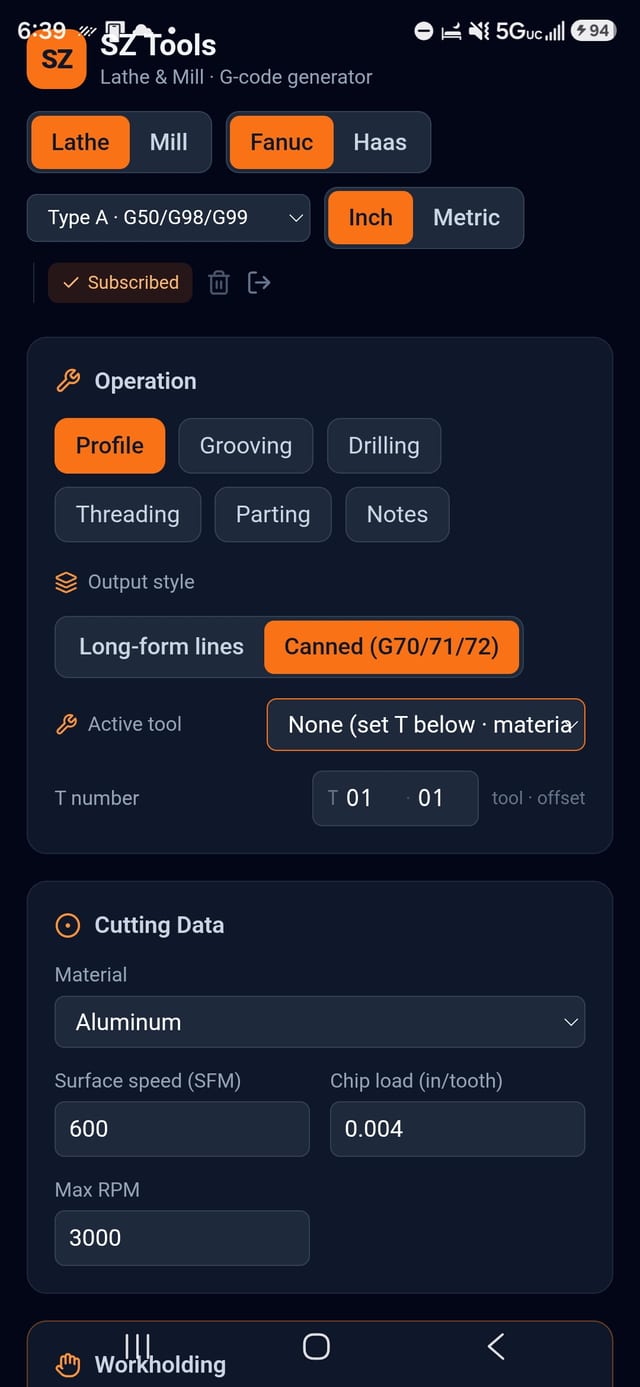
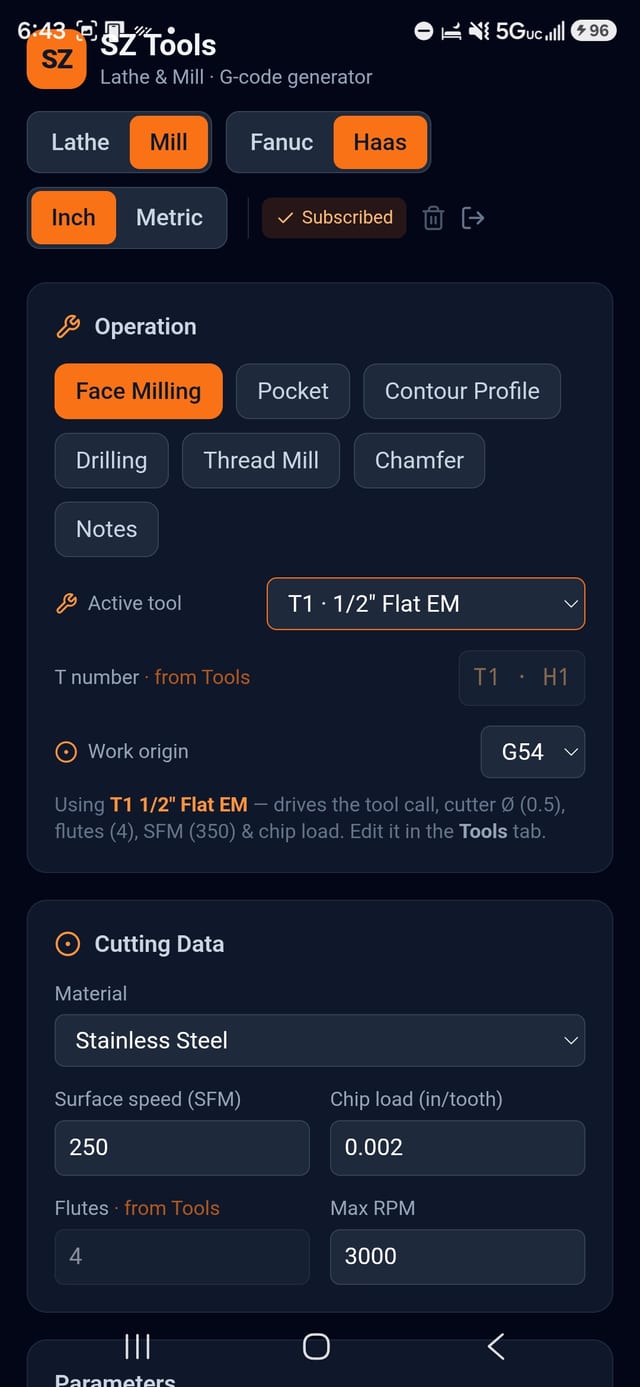
Set the machine, pick the operation
Lathe or mill. Fanuc or Haas. Inch or metric. Then the operation — on the lathe: profile, grooving, drilling, threading, parting. On the mill: face milling, pocketing, contour profiling, drilling, thread milling, chamfering.
Everything below the selector changes to suit it, so you are never scrolling past fields that don't apply. Switch machines at the top and the operations, parameters and speeds all follow.
Step 02
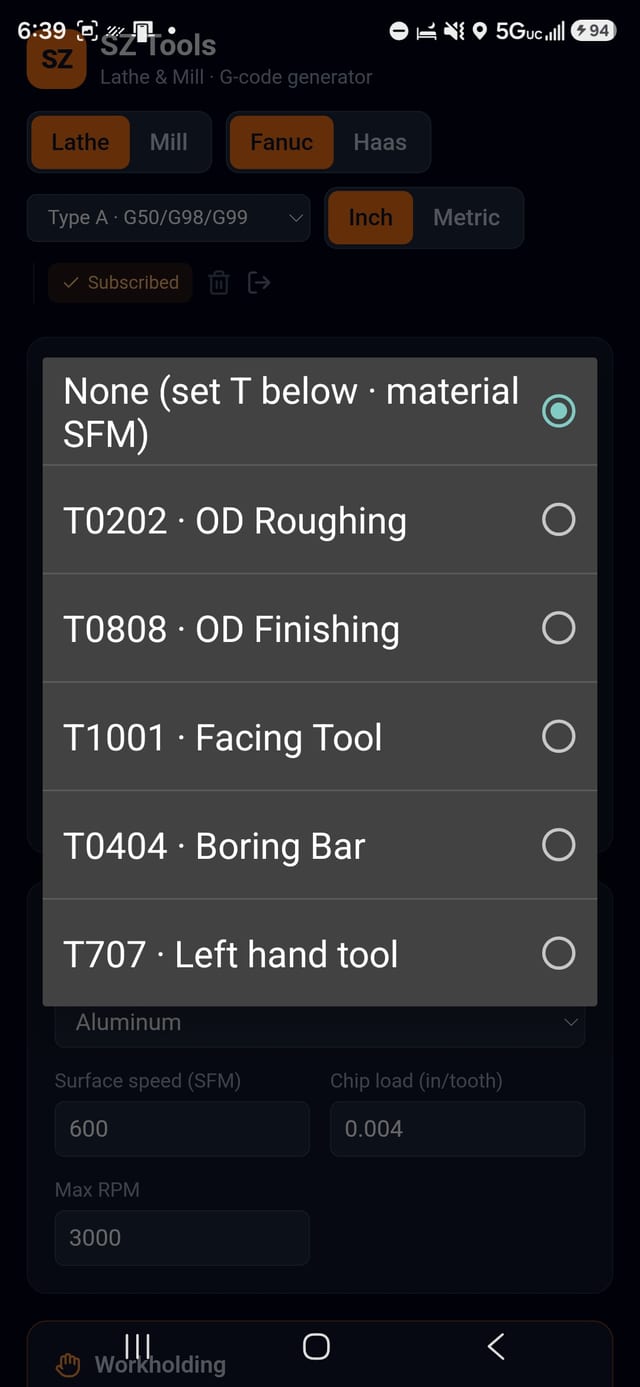
Call a tool from your library
The list is filtered to the operation you are running. Pick threading and you see threading tools; pick drilling and you see drills, reamers and taps. No scrolling past a boring bar to find a parting blade.
The tool drives the turret call, the surface speed and — on drills and reamers — the hole diameter and the point angle.
Step 03
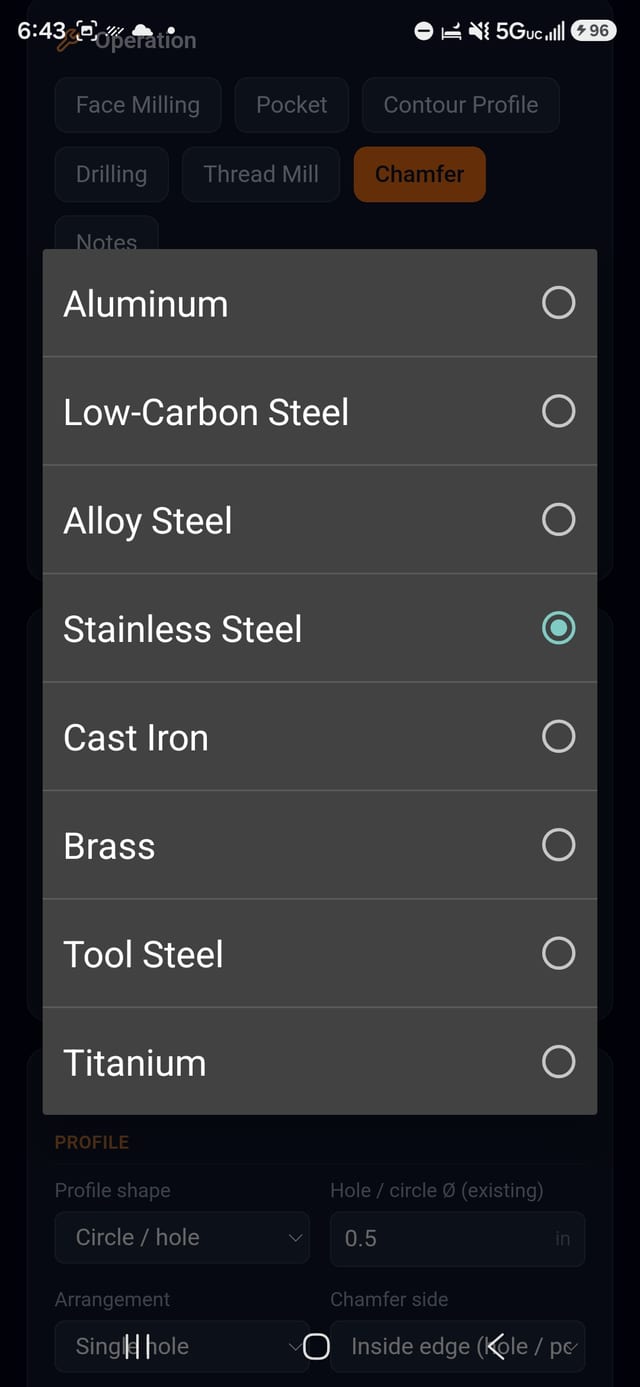
Cutting data from a table you can edit
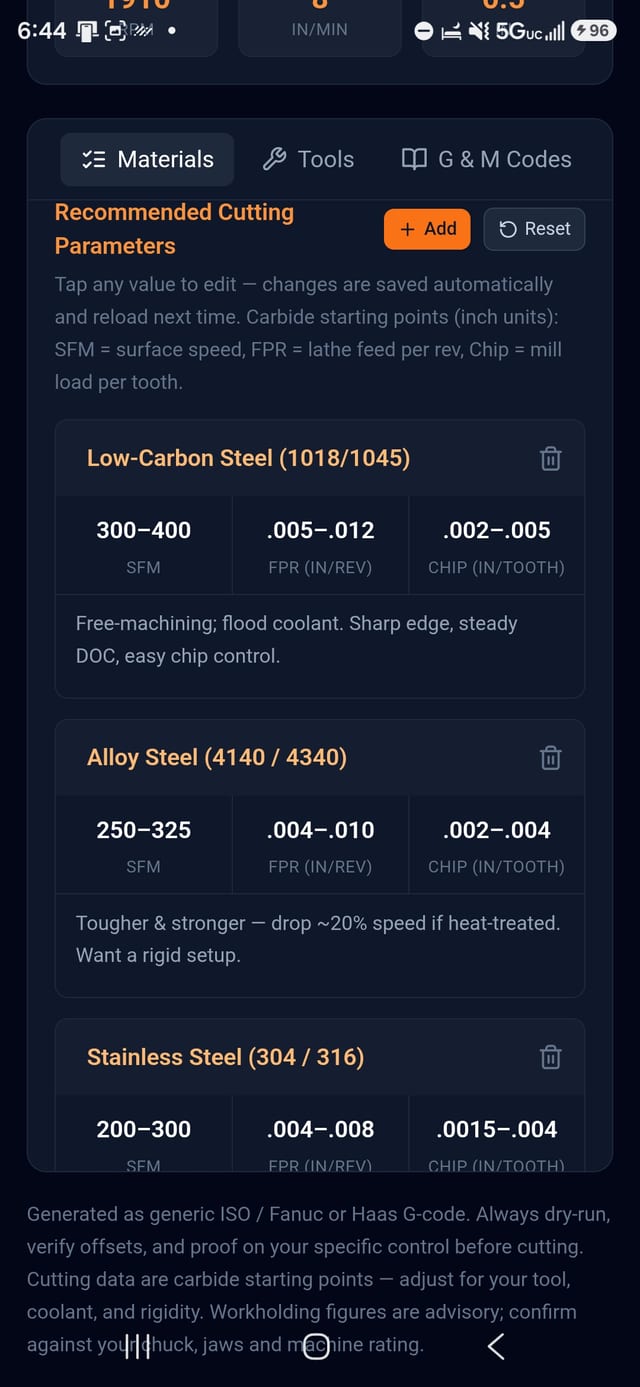
Choose the material and the surface speed, chip load and feed come with it — carbide starting points for aluminium through titanium. Every number is editable, and the whole table is yours to change: tap a value, it saves itself and reloads next time.
Step 04
Dial the cut, then stack the operations
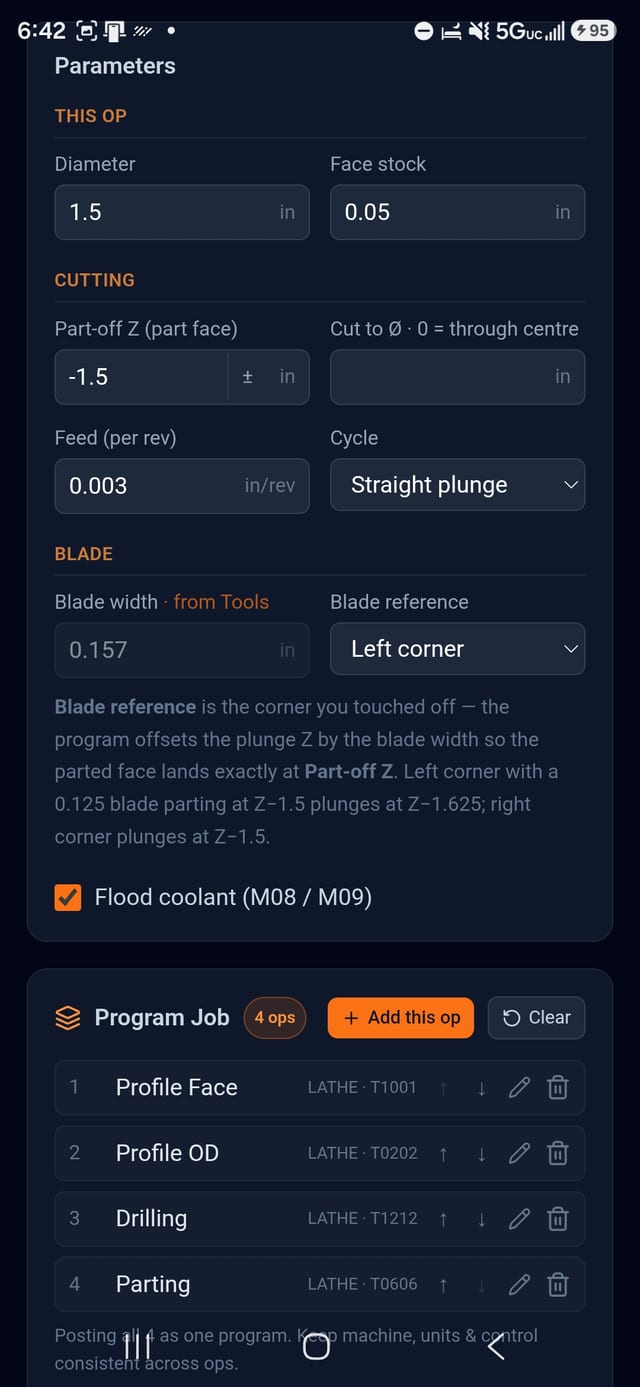
Stock and finished shape, roughing depth and feed, finish allowance on diameter and on Z, blade width and which corner you touched off. The numbers a machinist would write on the setup sheet, in the order they'd write them.
Add each op to the job queue, reorder it, edit it. Face, rough, drill and part post as a single numbered program with an optional stop between operations — not four files you have to splice at the control.
Step 05
Put your own notes in the program New
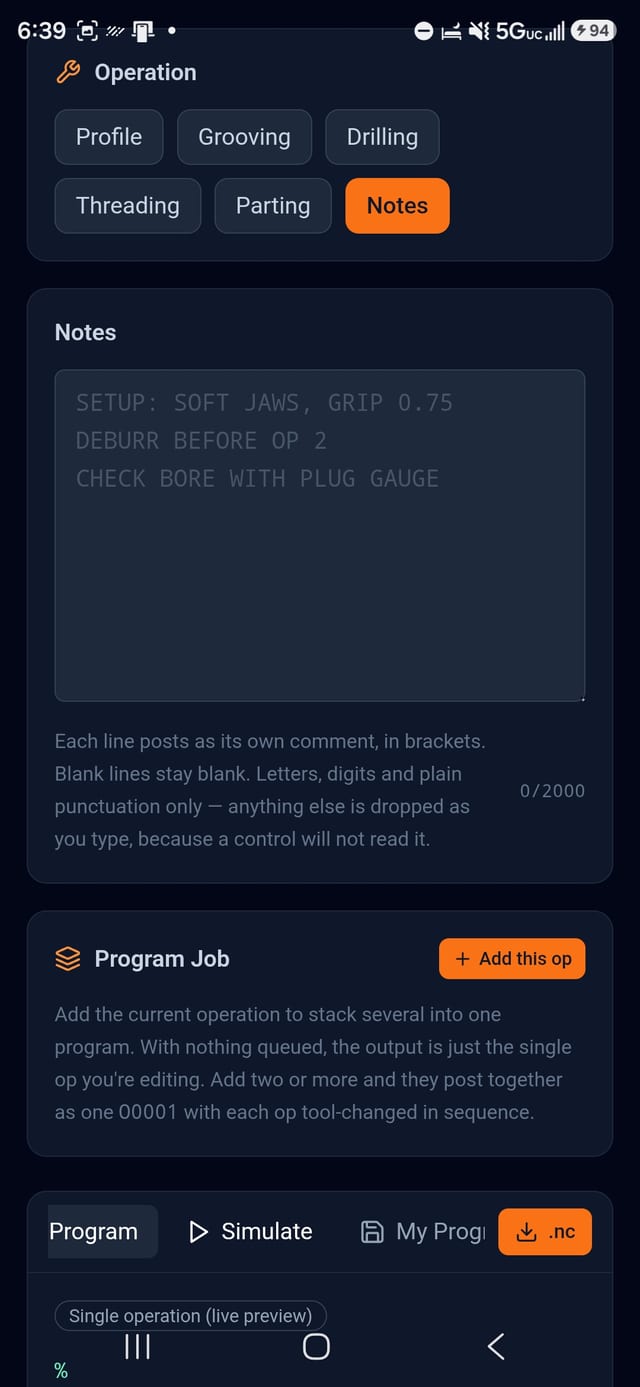
Setup instructions, a part number, a reminder to deburr. Type them and each line posts as its own comment, dropped in wherever you queued it — start of the program, between two ops, at the end.
Only characters a control can actually read are accepted; anything else is dropped as you type.
Step 06
Read the code before it leaves your hand
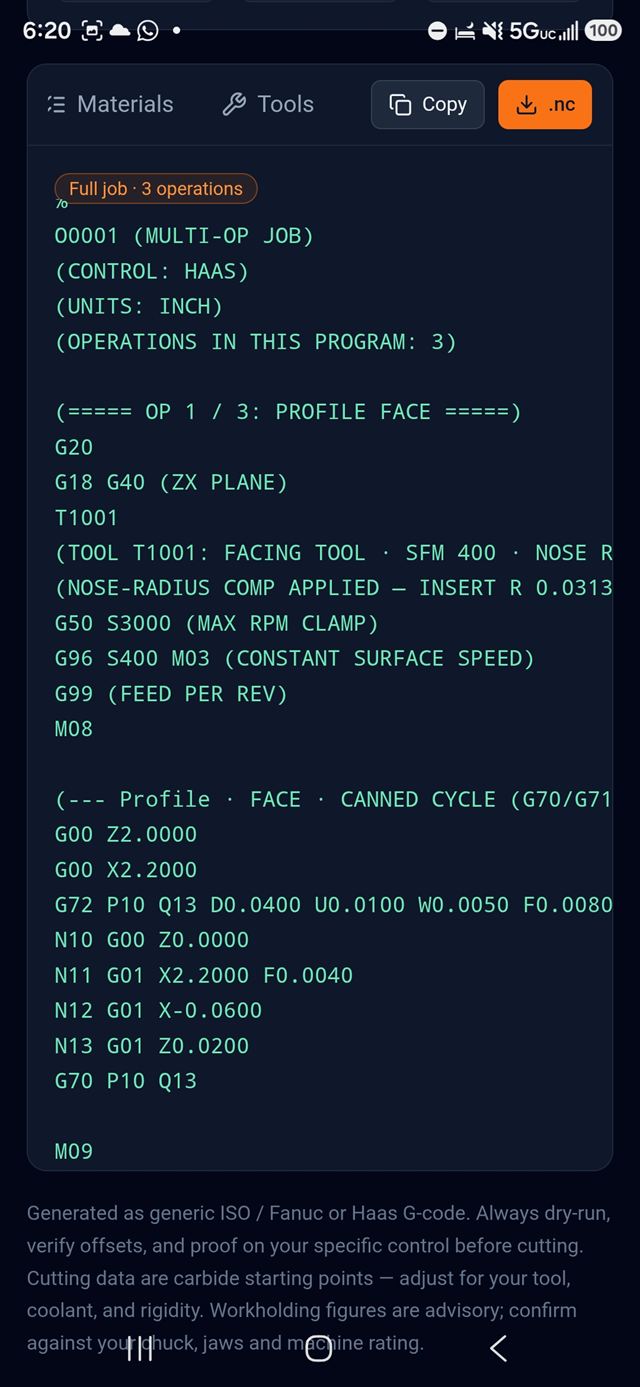
The program is on screen the whole time, updating as you type. Canned cycles where the control expects them — G70/G71/G72 roughing, G76 threading, G83 pecking — or long-form lines if you'd rather see every move.
Comments are plain ASCII, so an older control shows them as written.
Step 07
Watch it cut, before the machine does
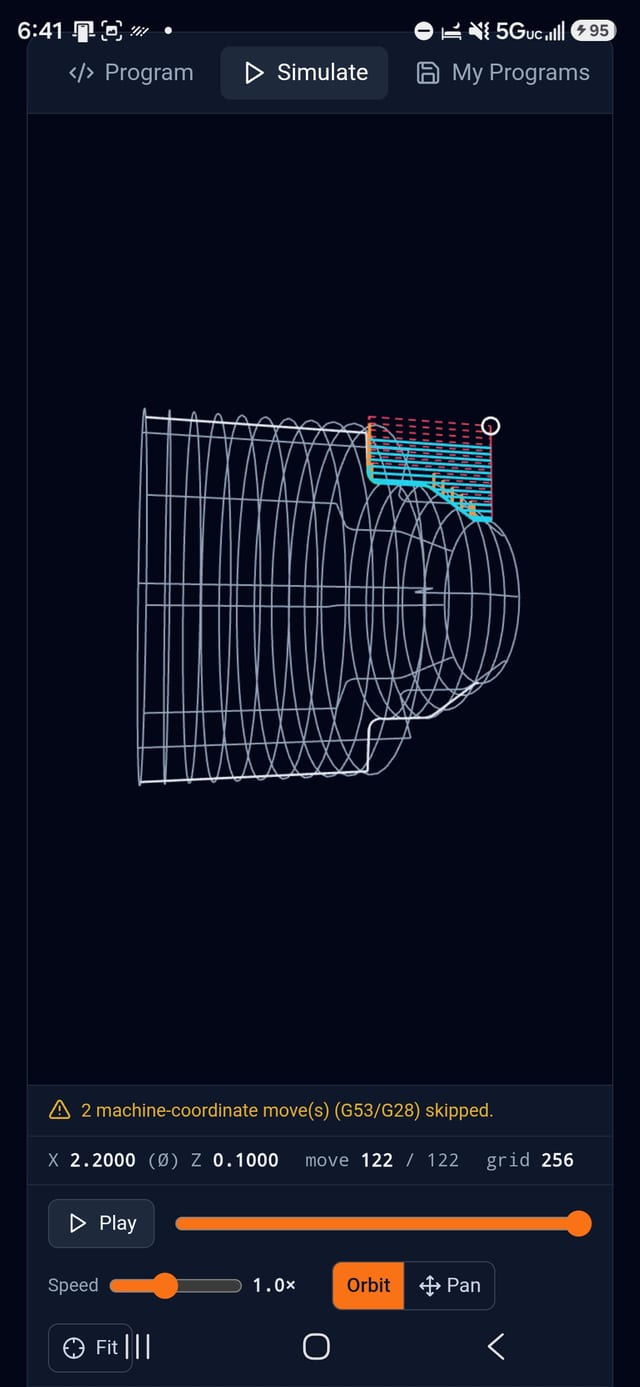
A backplot built into the app. Every move is colour-coded — rapid, feed, arc, plunge, canned cycle — over a stock model that the tool actually carves away as it runs. Scrub the timeline, change the speed, orbit the part with a finger.
It reads the same canned cycles the control does: G71 roughing including Type II undercuts, G72 facing, G70 finishing, G76 threading with taper, and the drilling cycles — all expanded into the passes the machine would really make.
Step 08
Your libraries, set once
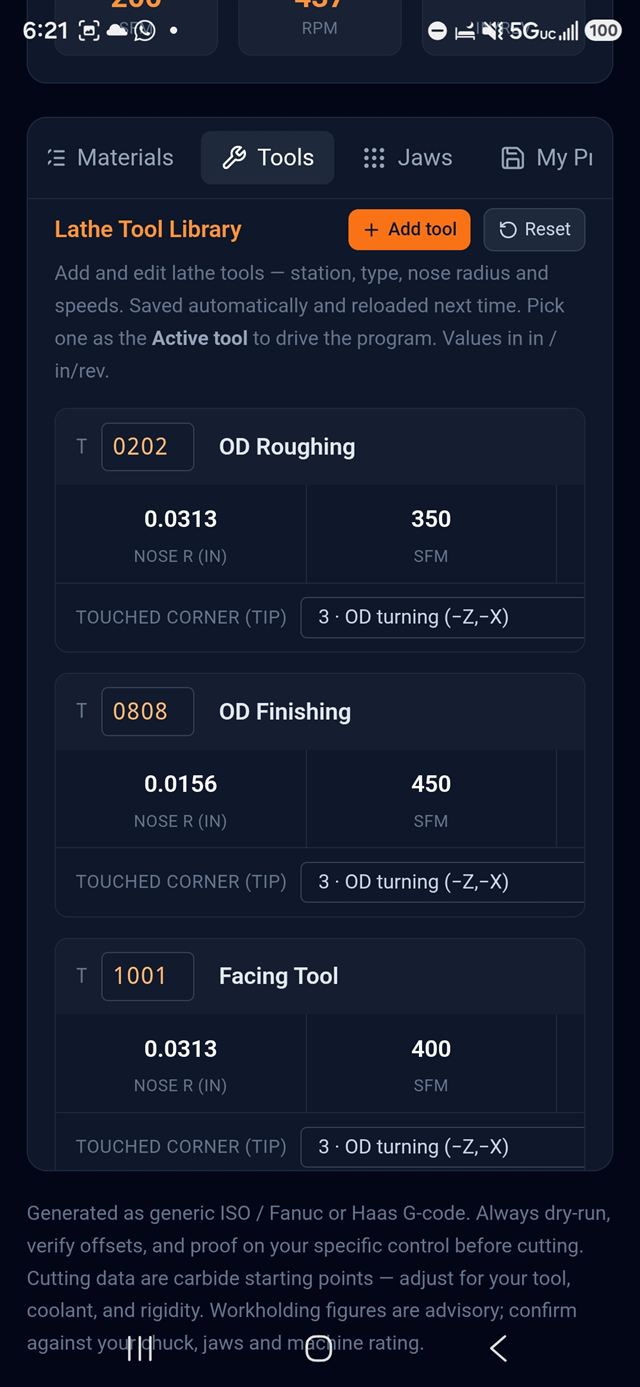
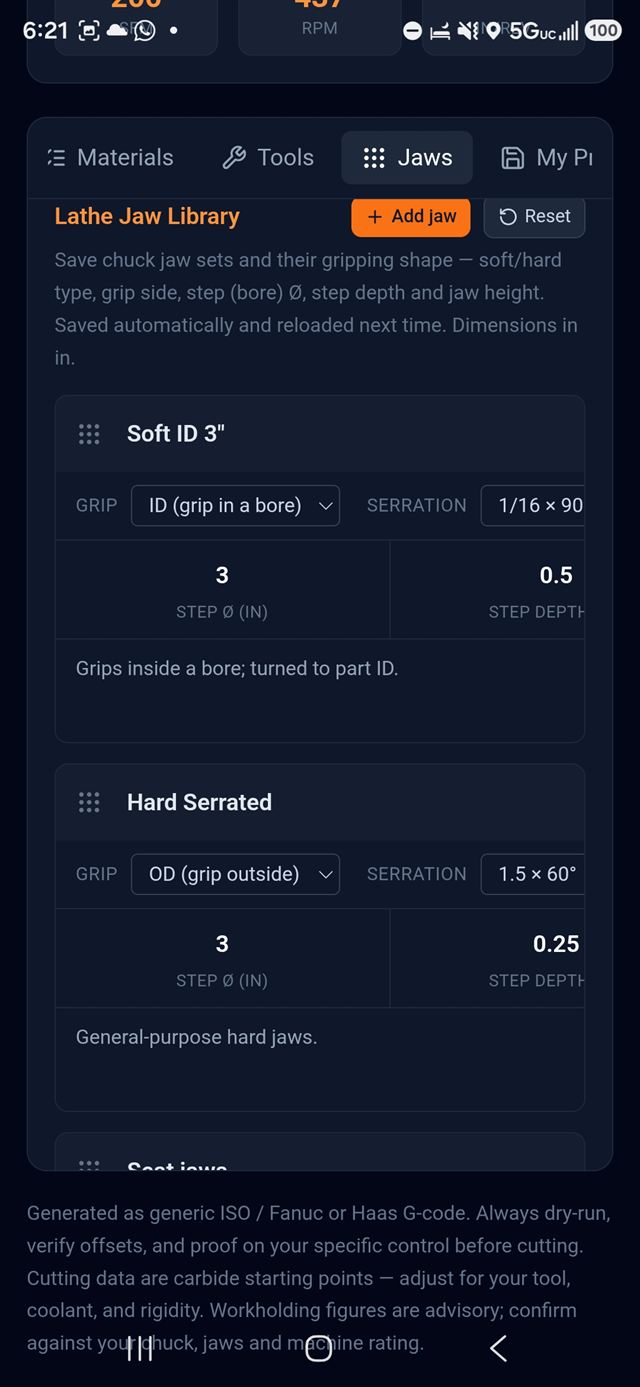
Tools by station, type, nose radius and surface speed. Chuck jaws by grip side, step diameter, step depth and serration.
They save themselves and sync to your account, so the same libraries are waiting on every device you sign in to.
Step 09
Save it, export it, walk to the machine
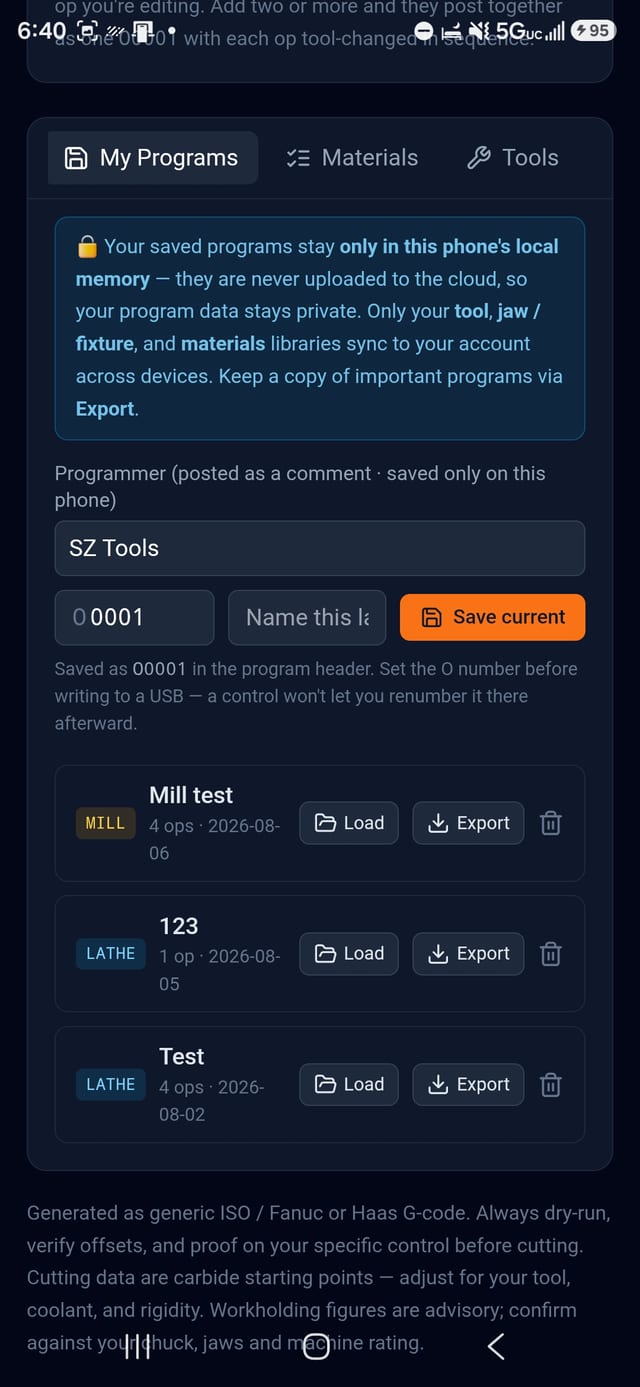
Save the whole setup — machine, parameters, workholding, active tool and the entire job queue — and load it back later. Set the O number before you write it out, because the control won't let you renumber it afterwards.
Export writes a clean .nc file. Pick the folder, including a
mounted USB stick. Your programs never leave the phone.
N30 · Price
One subscription, every operation
- 7-day free trial
- All lathe and mill operations
- Cancel any time in the Play Store